
What is the price range?
Ticket pricing for the ballot can be found below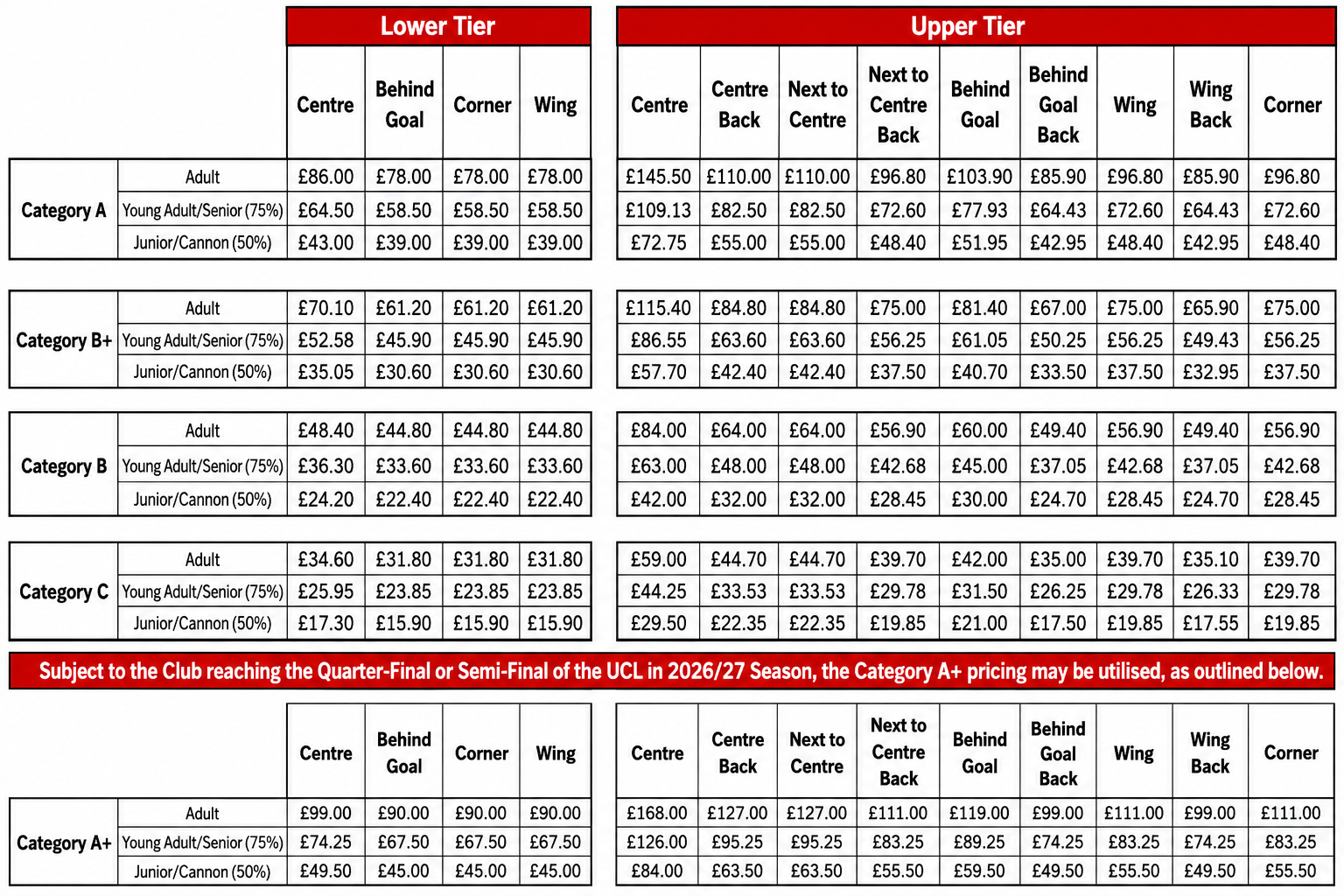
Will members be given a choice of what area/price range when they apply in the ballot?
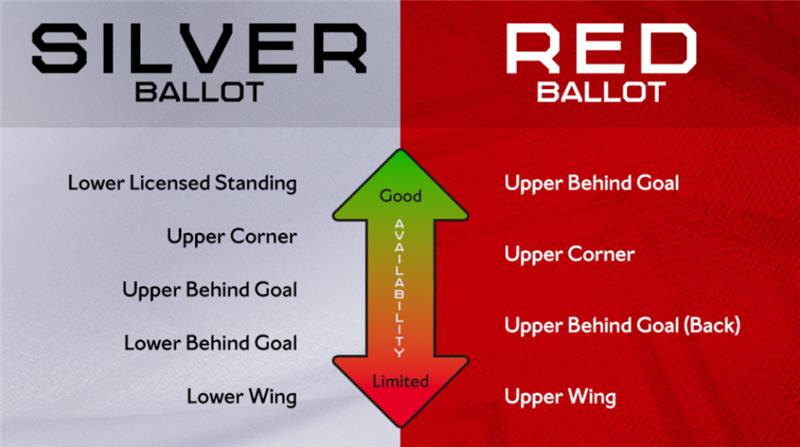
Members who apply in the Silver and Red ballot are able to select up to two preferred pricebands during the registration process. You may also select that you wish to be balloted into any remaining areas if you are not successful in either of your preferred pricebands.
A choice of pricebands will be offered for all Premier League fixtures. Please note, it may not be possible to offer this for cup fixtures depending on event requirements and as such, this will be confirmed on the relevant ticket information for each fixture.
I need to amend my ballot application
If you need to add/remove a member from your application or need to update your payment details then you will need to withdraw your application and start again and this will need to be done before the ballot closes.
To access your ballot application head to our ticketing site and select 'Tickets & 'Ballot' and then 'Ballot Registrations'

Step 2:
Please click 'Apply For Tickets' on the ballot application you wish to amend.

You will now be presented with the below and then click on 'Withdraw application'


You will then be presented with the below message and you will also receive an email confirming your application has been cancelled.

You can now go ahead and re do your ballot application.
I have entered the wrong ballot, what can I do?
If you have entered the wrong ballot then you will need to withdraw your application and start again and this will need to be done before the ballot closes.
To access your ballot application head to our ticketing site and select 'Tickets & 'Ballot' and then 'Ballot Registrations'
Step 2:
Please click 'Apply For Tickets' on the ballot application you wish to amend.
You will now be presented with the below and then click on 'Withdraw application'
You will then be presented with the below message and you will also receive an email confirming your application has been cancelled.
You can now go ahead and re do your ballot application.
With the removal of the Family Enclosure, is there still an area which is family orientated?
For both the Silver and Red ballots, you will be able to register your interest for your group to be balloted into the family area which resides in blocks 28, 29 and half of 30. Please note this is not a guarantee depending on availability and group requirements and your group can still be balloted into any of the areas you have selected in your application.
At the time of registration for the ballot please ensure you tick the box to confirm you would like to be balloted in the family area.

For Champions League games, 19 Game Gold Season Ticket/Silver and Red Members will not have the option to select our dedicated family areas, which are in blocks 28, 29 and half of block 30. This is due to event requirements, and because there are concession-priced tickets available throughout the stadium.
What are the group requirements?
Silver Members and Red Members who are adults are only permitted to be in the Family area if they are accompanying a Junior Gunner. A maximum of 2 adult Red or Silver Members are permitted to accompany each Junior Gunner.
Senior members & Junior Gunner members aged 14+ can sit in this area unaccompanied.
Do I have to pay to register for the ballot?
Please note that when you enter the ballot, an authorisation charge will be applied to your card. This temporary charge serves to validate your payment card and will be immediately refunded.
Your payment card will only be charged if you are successful in the Silver or Red ballot - there is not a fee to enter the ballot.
Please note when selecting your priceband options below, the overall validation charge is £0.1p for the application, not £0.1p per seat and priceband.
The ballot won't accept my payment card
Please note that when you enter the ballot, an authorisation charge will be applied to your card. This temporary charge serves to validate your payment card and will be immediately refunded.
Transactions can be declined due to various reasons like insufficient funds, incorrect card details, expired cards, and bank's fraud detection.
If you are receiving the below message then please double check the card details you are entering are correct.
If you are receiving the below message then this could mean that either the billing address doesn't match the address on your membership account or you are missing mandatory fields on your membership account and we advise for you to check your membership account to find out if any of your information is out of date or missing.

You can check your 'My details' section within your online account.
Once you have made any changes to your details please log out and log back in and try again, We also recommend you delete your cookie/cache.
Tips, hints and advice
Arsenal Network
We strongly recommend you set up your network well in advance before the ballot opens. In order to register for the ballot online on behalf of another member then you first must ensure that member is added into your network within your online account, Please click here to more information on the network.
Check your passwords and billing details
Check that you know your password and all your details are up to date before a ballot opens. If you've forgotten your password, don't worry, there's an option to have a new one emailed to you . Please also make sure your address and contact details are fully completed, If you have an incomplete telephone number registered on your account then this is likely to cause issues making a payment online. If you're signed up to Verified by Visa or MasterCard Secure Code, make sure that you know your password before the ballot opens.
Debit/Credit Card
Due to the new PSD2 security regulations and to avoid payment failure, Please ensure your account information is correct and your address and contact details match those registered to your card.
VPN
Please ensure that you are not using a VPN, and avoid using datacentres, as these will hinder your ability to access the site.
Clear your Cache/Cookies and History from your Web Browser
Please find below the steps on how to do this:
In Chrome
• On your computer, open Chrome.
• At the top right, click More.
• Click More tools. Clear browsing data.
• At the top, choose a time range. To delete everything, select All time.
• Next to "Cookies and other site data" and "Cached images and files," check the boxes.
• Click Clear data.
How to Clear all type of Cache in Windows 10 PC
• Clean temp files through Windows 10 storage sense.
• Delete Temporary cached files on your Windows PC.
• Delete Prefetch Files from Windows PC.
• Delete Unnecessary files Cache on your System.
• 2- Browser Cache.
• 4- Clear Windows Store Cache.
• Clear Your DNS Cache on Windows 10.