
How do I update my details?
Please see below for instructions on how to update your details online.
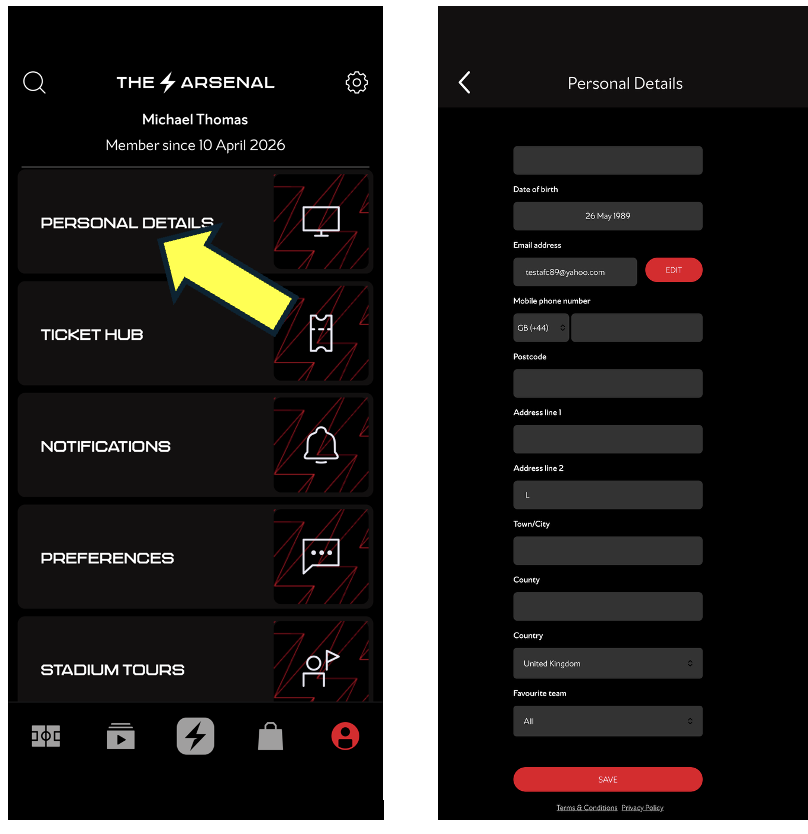
Important
Once you have updated your details, please log in to the Online Box Office here. This will allow your account to fully sync and ensure your changes are applied.
Why is the Junior Gunner Membership now in an adult’s name?
This relates to Single Sign-On, where each Junior member must have a unique email address linked to their account. Please contact us here with an email address for the Junior, and include the subject heading 'Junior Gunner Incorrect' and we will update the account details accordingly.
Please be assured that the parent or guardian will still retain access to manage the account after these changes.
How do I delete my account/remove my data?
The easiest way to stop receiving information from us is by opting out of communications through your online preference centre (this is linked to in our communications with you and is accessible at times via your account settings). You can also correct your registration details through your online account.
We will do our best to respond to any queries you may have regarding your personal data within 30 days of receipt.
You can contact our Data Protection Officer at dpo@arsenal.co.uk. When getting in touch, please provide your full name, preferred contact details, and a brief summary of your query.
Please see below for instructions on how to delete your account online.
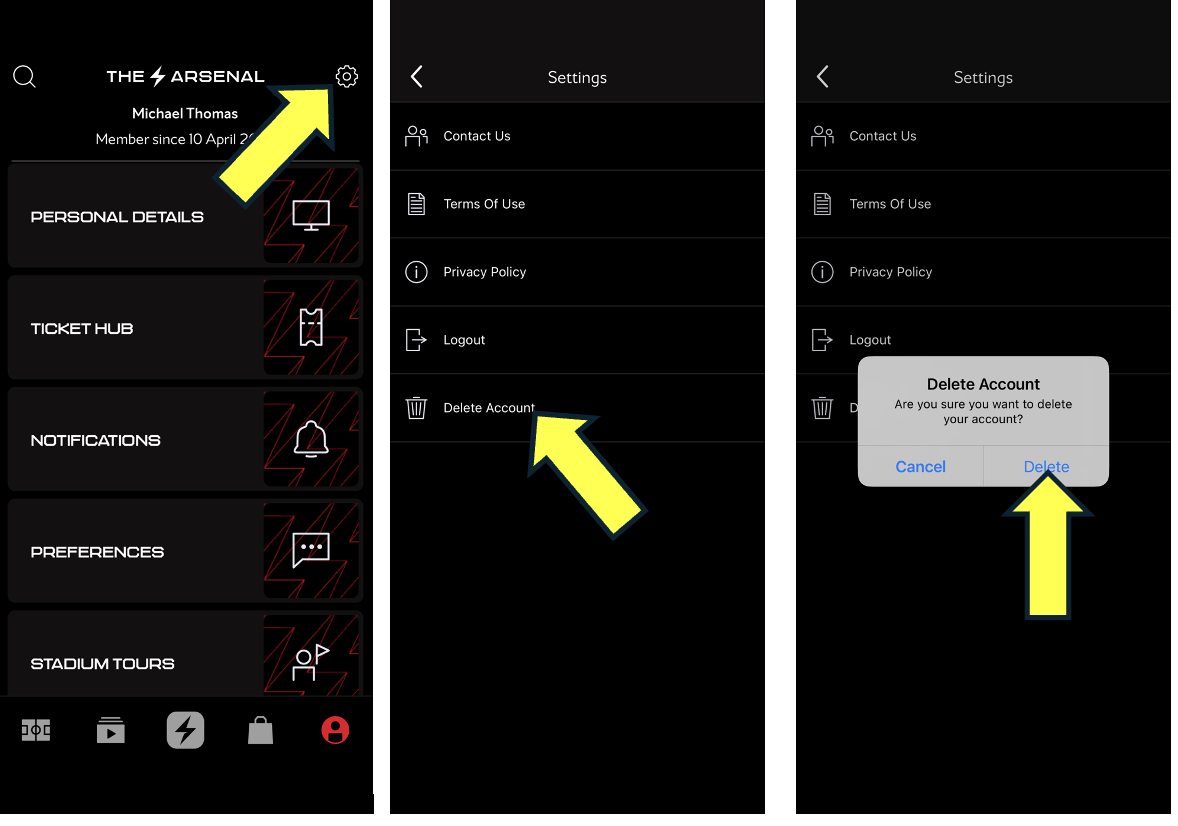
Please allow 1 month for your request to be completed, and we’ll contact you if there are any further details needing confirmation. In the meantime your account will still be accessible.
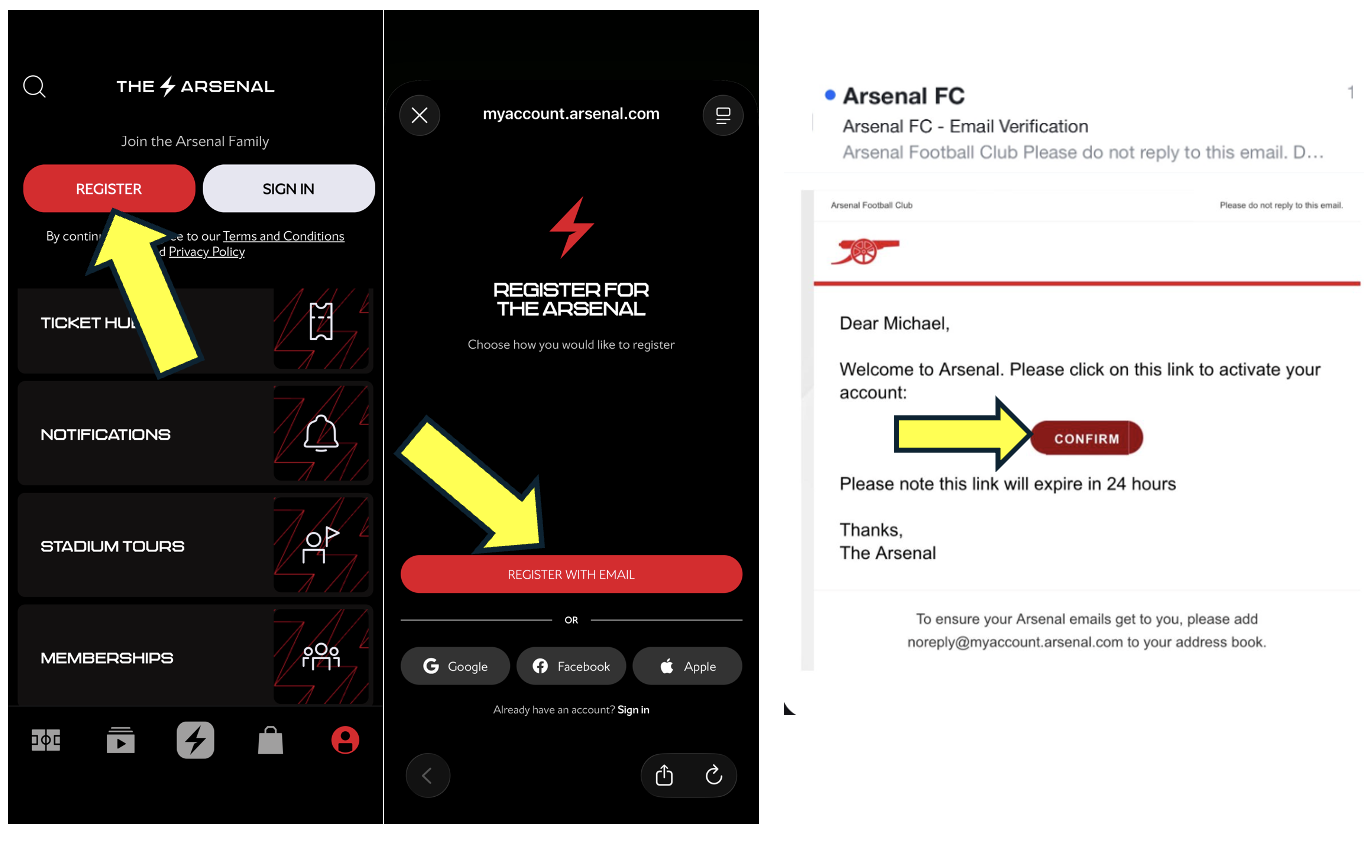
How do I create an account to purchase a membership?
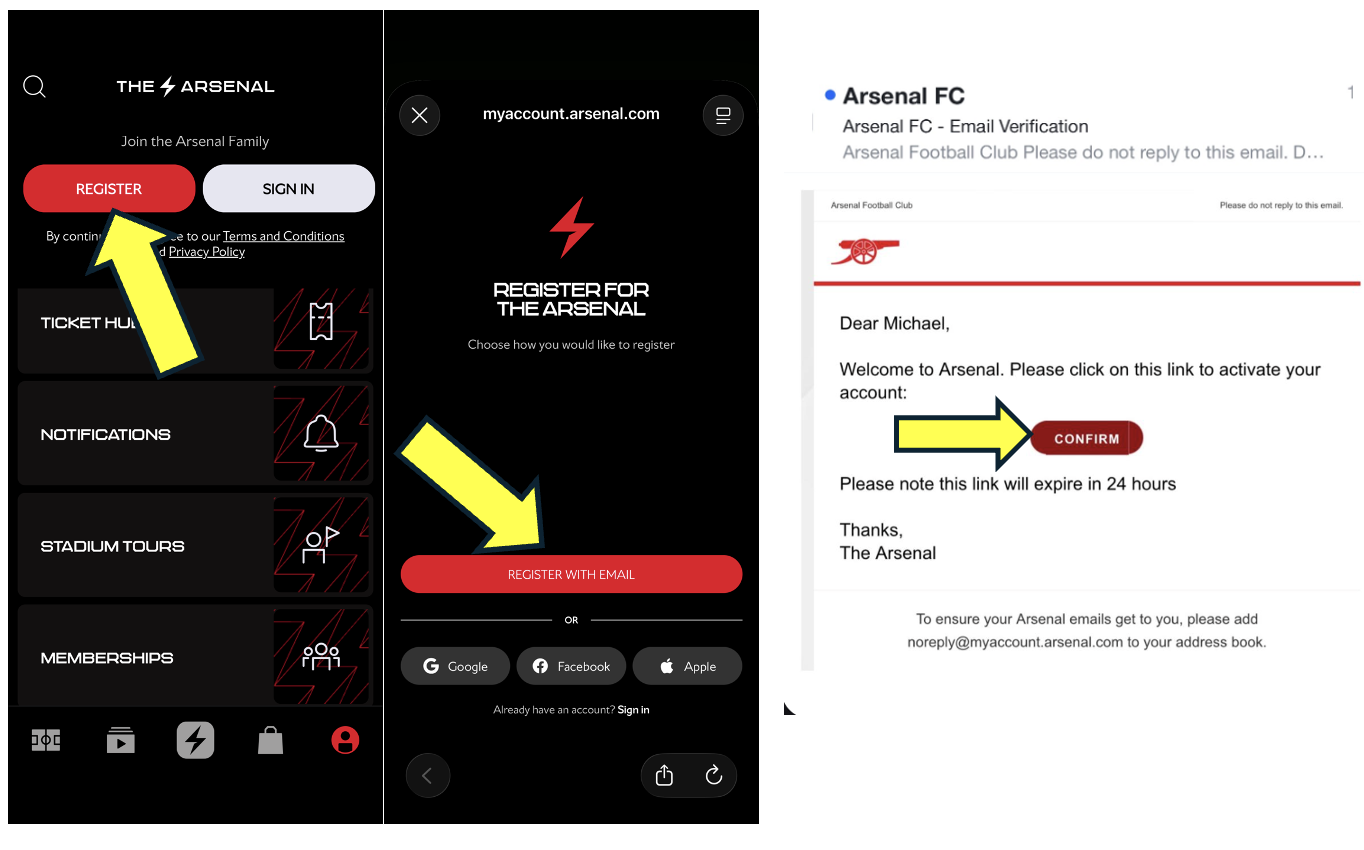
To purchase a membership, you must first create an account with us.
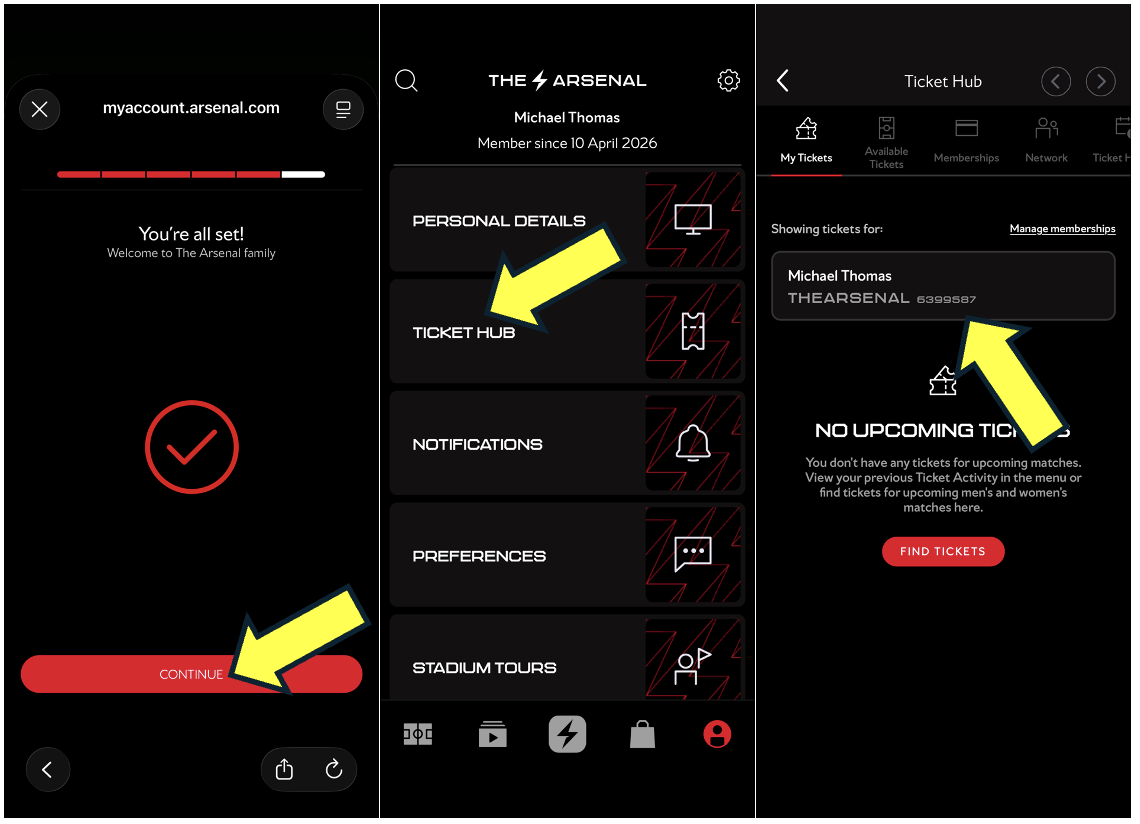
You will need to register your email address, and once it has been verified, a 7-digit membership number will be generated for you. You can then use this to access the online box office site to purchase your membership.
When you log in to the online box office site for the first time, you will be asked to link your single sign on account to your membership number.
Please follow the steps below to create an account and purchase a membership.
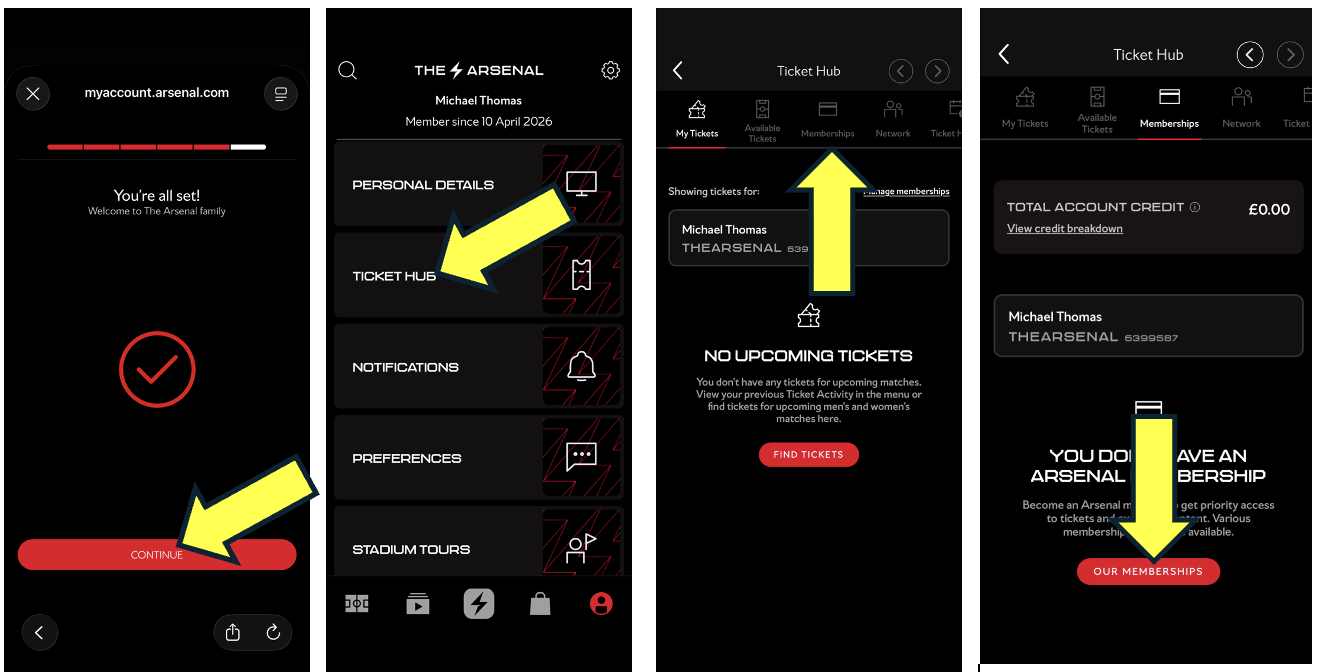
How do I create an account to receive a Ticket Transfer?
To receive a ticket transfer, you must first create a free account with us.
You will need to register your email address, and once it has been verified, a 7-digit membership number will be generated for you. You can then provide this number to the supporter who is transferring the ticket, and they will be able to add you to their account to complete the transfer.
Please follow the steps below to create your account and find your 7-digit membership number.
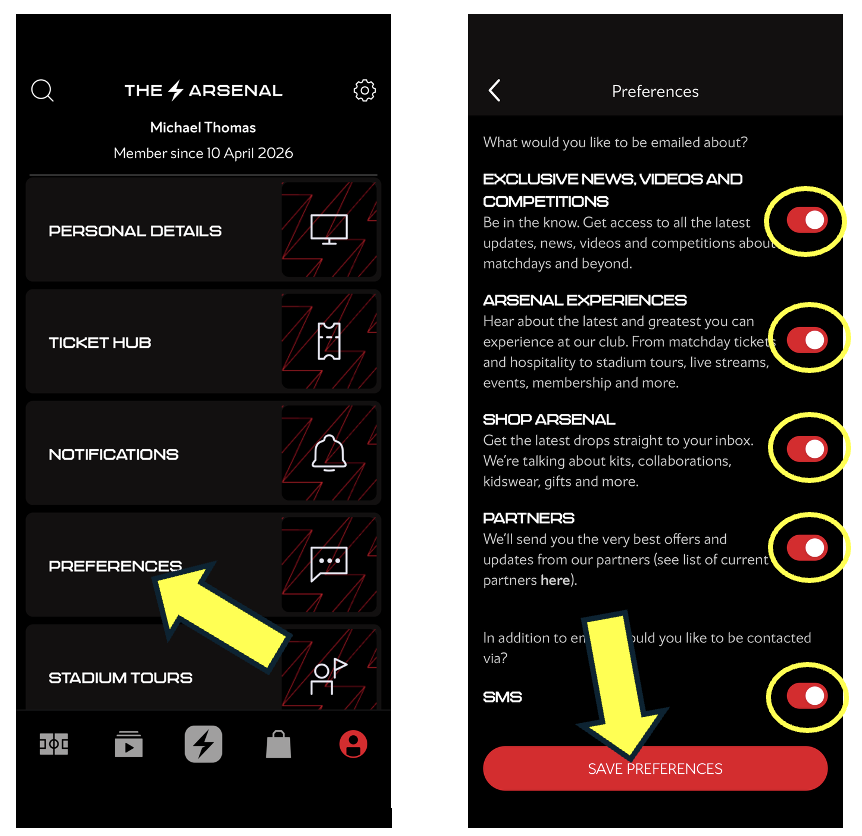
How to opt in or out of receiving emails
To update your email preferences, please follow the below steps below
I can see memberships I don’t recognise
Since Single Sign On, the system is showing all memberships that are under your email address. This will include memberships you created some time ago, in error, no longer use, only used once and so on.
If you can see a membership in your account that you do not recognise, this is likely to be an old or unused account that was created in the past. You may also see a membership number that is associated with a Season Ticket Waiting List.
If you no longer require this account, please submit an enquiry form here and we will ensure that this account is removed from view.
How can I remove/block a member?
Removing from My Network
Step 1: To access your network, visit www.eticketing.co.uk/arsenal and Log In to your account using the button in the top right-hand side of the screen.

Step 2: Then, click the head and shoulders icon again to access account information and click on ‘View Account Menu’.

Step 3: Click on ‘Account Management’ and then ‘Network’.

Step 4: To remove a supporter from the Network, just click on the name of the person within the network and then ‘Remove Member’.

Step 5: You then have the option to ‘Remove Member’ or ‘Remove and Block’.