
My Network Levels:
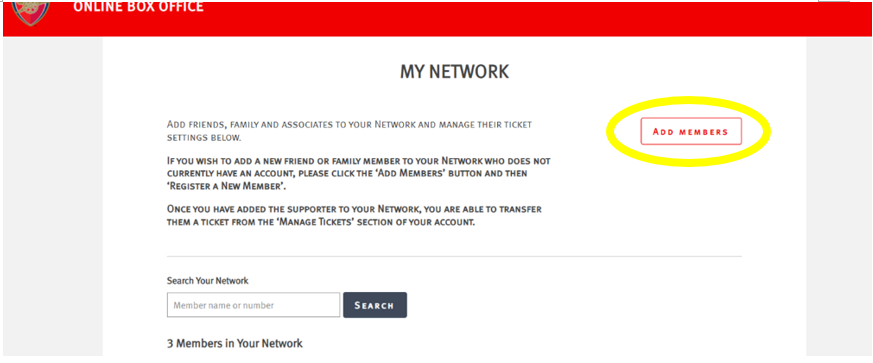
Assigned (Level 1): Gives the Member the privilege to allow you to purchase tickets with, or on the behalf of, someone in your Network.
Managed (Level 2): Gives the Member the privilege to allow you to manage the tickets or someone in your network (e.g., Renew their Season Ticket, purchase a reserved seat on their account, post their seat on Ticket Exchange and Ticket Transfer)
Assigned (Level 1): Gives the Member the privilege to allow you to purchase tickets with, or on the behalf of, someone in your Network.
Managed (Level 2): Gives the Member the privilege to allow you to manage the tickets or someone in your network (e.g., Renew their Season Ticket, purchase a reserved seat on their account, post their seat on Ticket Exchange and Ticket Transfer)
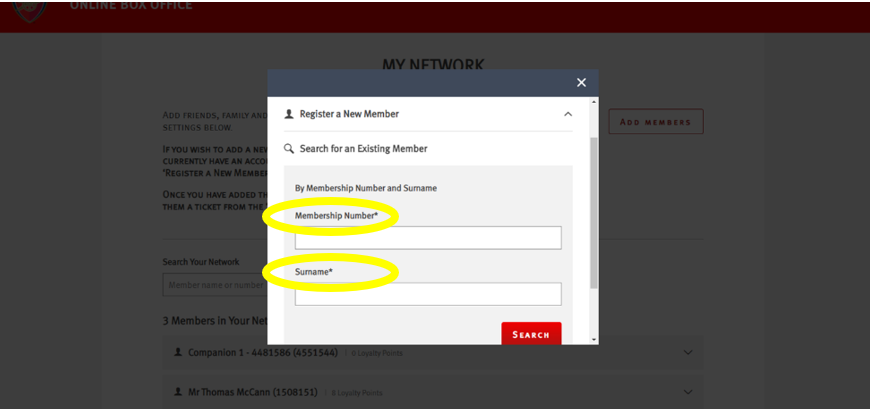
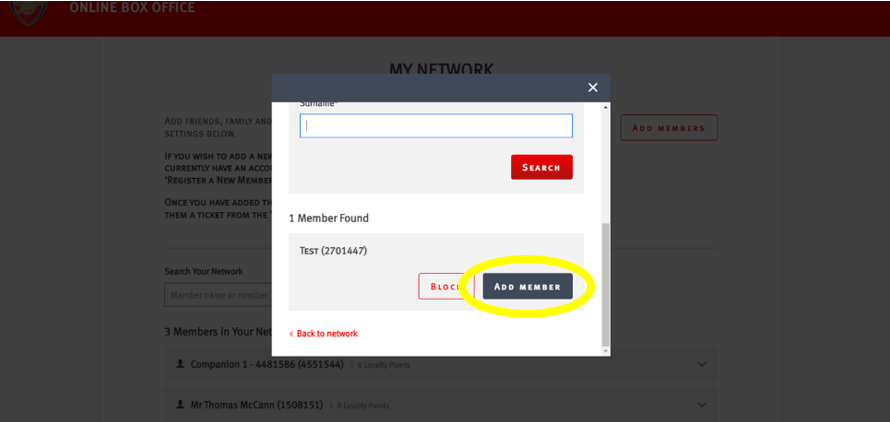
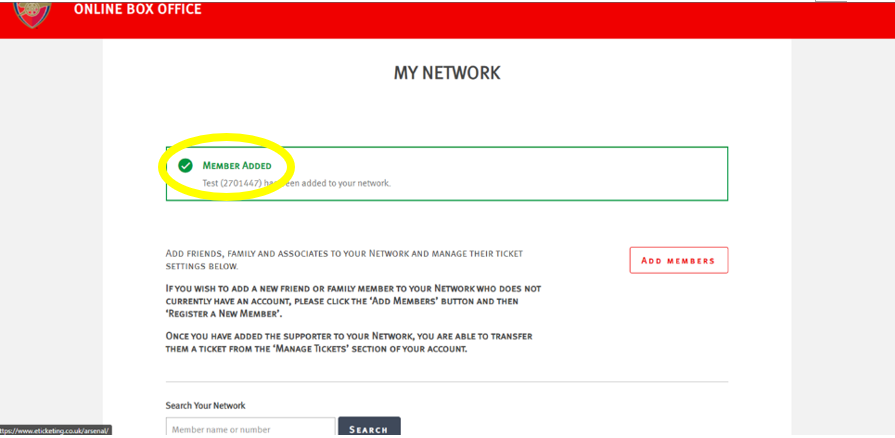
```