
How to scan your Digital Pass- Video
Before leaving home, make sure your phone is fully charged and your digital pass is downloaded in your wallet.
At the stadium, follow the instructions to gain entry. If there are issues, visit the Digital Ticketing Help Centre (Turnstile A) or the Matchday Box Office (next to the Armoury).
If having issues scanning, remove your phone case.
How to scan a Digital Pass with a barcode
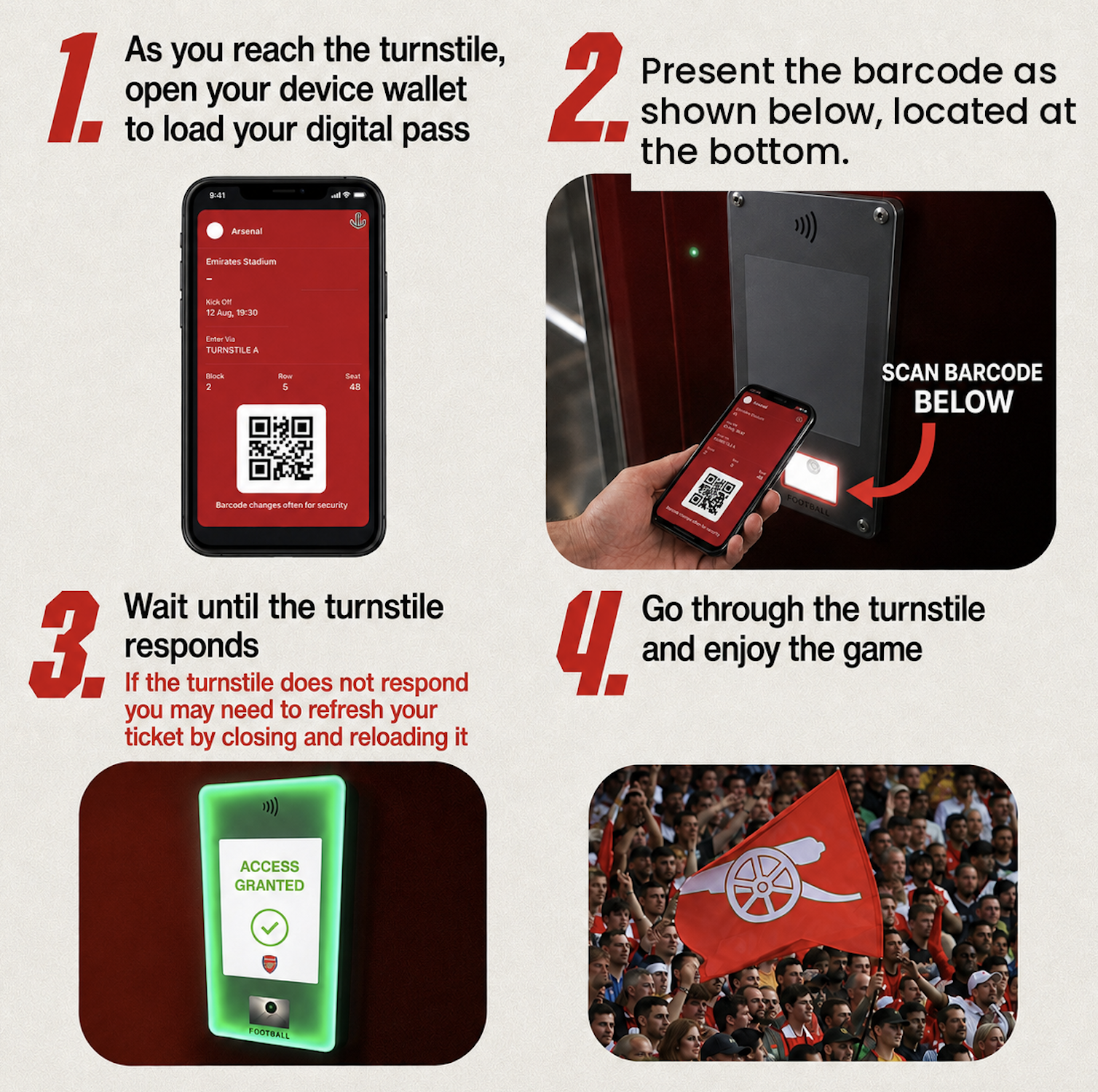
Digital passes with barcodes are supported only on certain Android device versions.
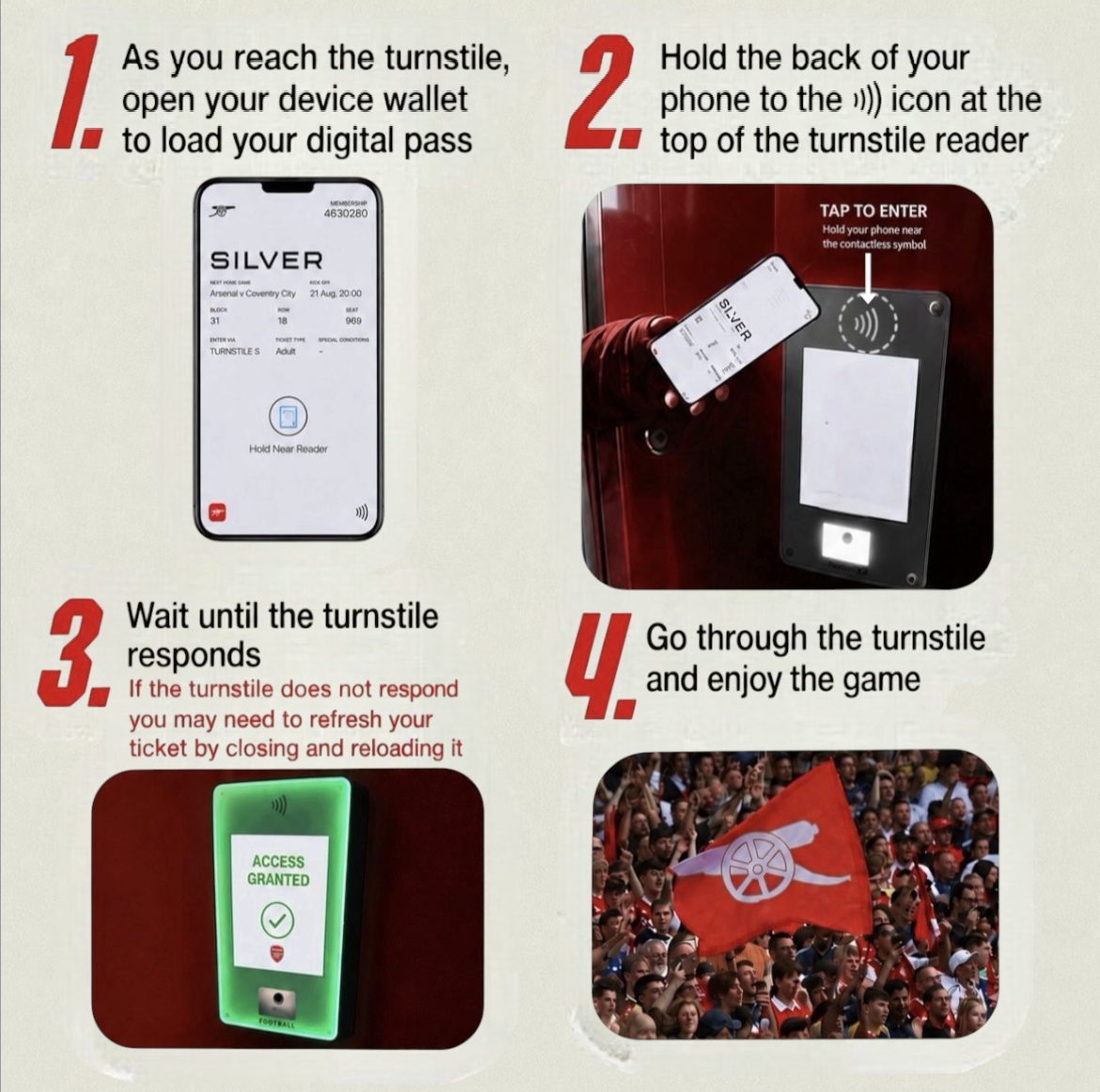
How to scan an NFC Digital Pass
My iPhone Digital Pass hasn’t updated
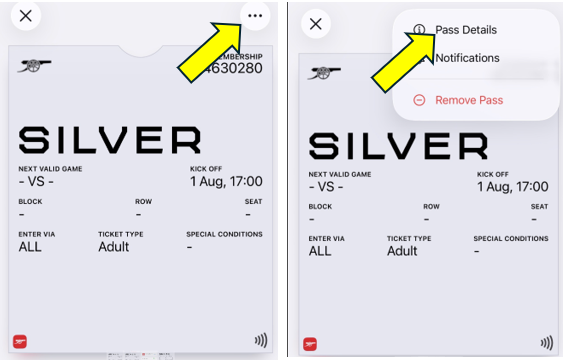
Your Season Ticket pass should update automatically to the next available fixture. Make sure updates are enabled in Apple Wallet. If not, follow the steps below:
- Go to Apple Wallet → your season pass → circle with three dots → Pass Details
- Enable "Automatic Updates"
- Pull down to refresh/update the pass or toggle Automatic Updates off and on
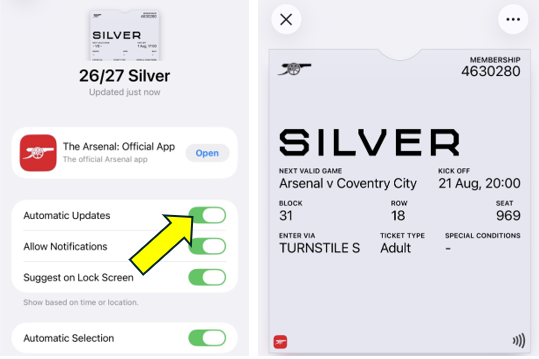
Android: Automatic Updates should be on by default. If not, try restarting your phone or removing and re-adding the pass via the Arsenal App.
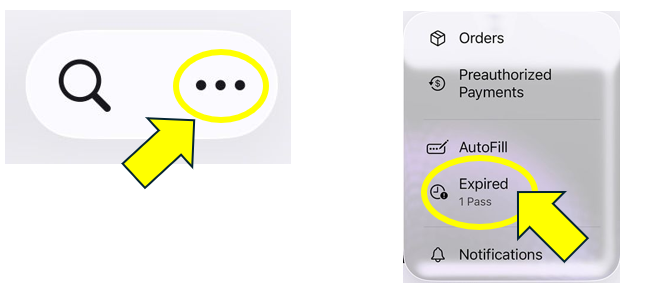
My pass has disappeared from Apple Wallet
• Open your Apple Wallet App
• Click on the 3 dots in the corner and select Expired
• Select your Season Ticket and tap 'Unhide'
• Return to the main Wallet screen
My pass has disappeared from Google Wallet
If you have downloaded your pass but are unable to view it in Google Wallet, please check that you are logged into the correct Google account.
Open Google Wallet and tap your profile picture in the top-right corner, then switch between your Google accounts to check whether the pass appears.
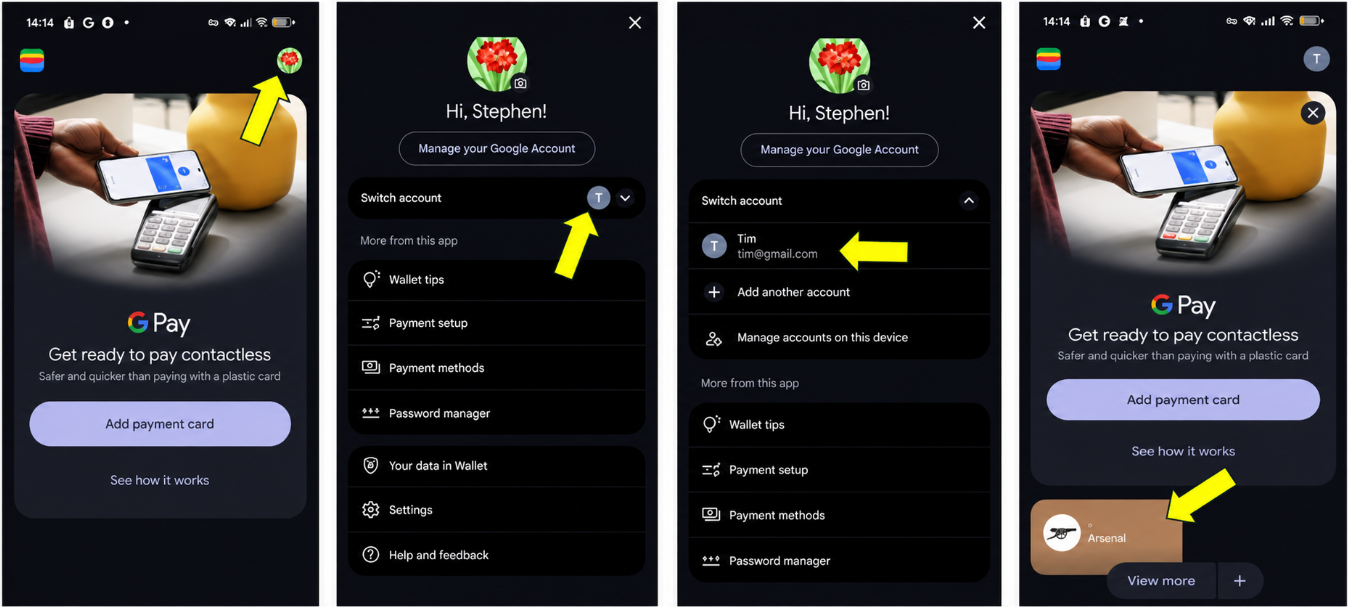
If you don’t see any accounts available to switch to, click Add another account and enter the correct email address.